
Connection Table: Which Process Connects Where
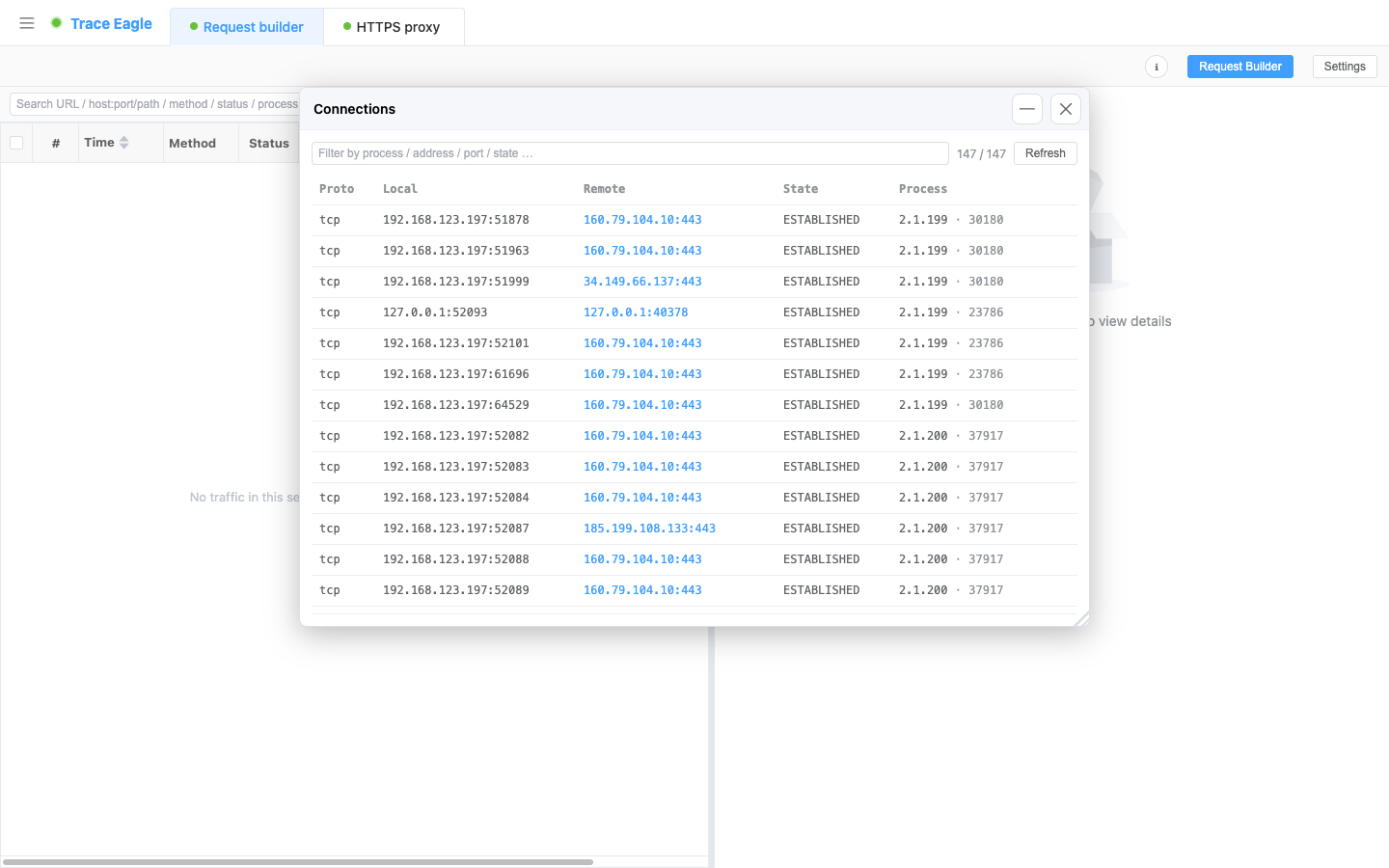
“Which program is quietly going online, and where is it connecting to?” The connection table lists every active connection on the machine, each labeled with which process is making it, so you can see the machine’s outbound communication at a glance.
1. What it can see
Section titled “1. What it can see”Every active connection on the machine right now (TCP / UDP, IPv4 / IPv6 all covered), one per row:
- Protocol, local address : port, remote address : port, connection state.
- Process attribution: which program (process name + PID) is using this connection, exactly the layer that an ordinary “view connections” listing leaves out.
2. What’s useful about it
Section titled “2. What’s useful about it”- Process attribution, straight to the culprit: instead of just seeing “there’s a connection to some address,” you’re told directly which program is making it, so working out “who’s going online” no longer needs another tool to cross-check PIDs.
- Same program grouped automatically: multiple connections from the same program are gathered together, so you see all of a process’s outbound channels at a glance.
- Filter on demand: filter in real time by process, protocol, PID, address, port, or state, quickly pulling the few you care about out of a large field of connections (it shows “filtered / total”).
- Look up the peer’s background in one click: click a row’s remote IP to jump straight to Host details for its ownership, geolocation, certificate, and tech-stack profile.
- Refresh for the latest: click “Refresh” for a fresh snapshot of connections.
3. Differences from ordinary “view connections” tools
Section titled “3. Differences from ordinary “view connections” tools”| Scenario | Ordinary view-connections tool | Connection table |
|---|---|---|
| A connection to some remote | Only the address, no idea who opened it | Gives you the process name + PID directly |
| You get a suspicious remote IP | You have to open another tool to see who it is | One click jumps to Host details, with ownership / geolocation / certificate / tech stack all in one view |
| A program opens multiple connections | Scattered across a long list | Same program grouped automatically, all its outbound channels at a glance |
One closed loop: spot a suspicious connection, identify which program it is, then click the remote IP to see the peer’s profile, all within a single window.
4. When to use it
Section titled “4. When to use it”- Troubleshooting which program is quietly going online, and which remote it connected to.
- Viewing a process’s current connections and the ports it holds.
- Looking up intelligence on a suspicious remote IP in one click to figure out the peer’s background.
Back to Proxy capture · Related: Host details