
Network Diagnostics: Self-Check, Ping, DNS Leak
The network suddenly stopped working: is it the NIC, the router, the broadband, DNS, or a proxy that failed, or have you been redirected to a login page? Rather than trying each one by hand, use this diagnostic suite to troubleshoot in one place: a one-click layered self-check tells you exactly which layer is stuck, and you can also watch connectivity and check whether DNS is leaking.
1. One-click layered self-check: locate exactly “which layer”
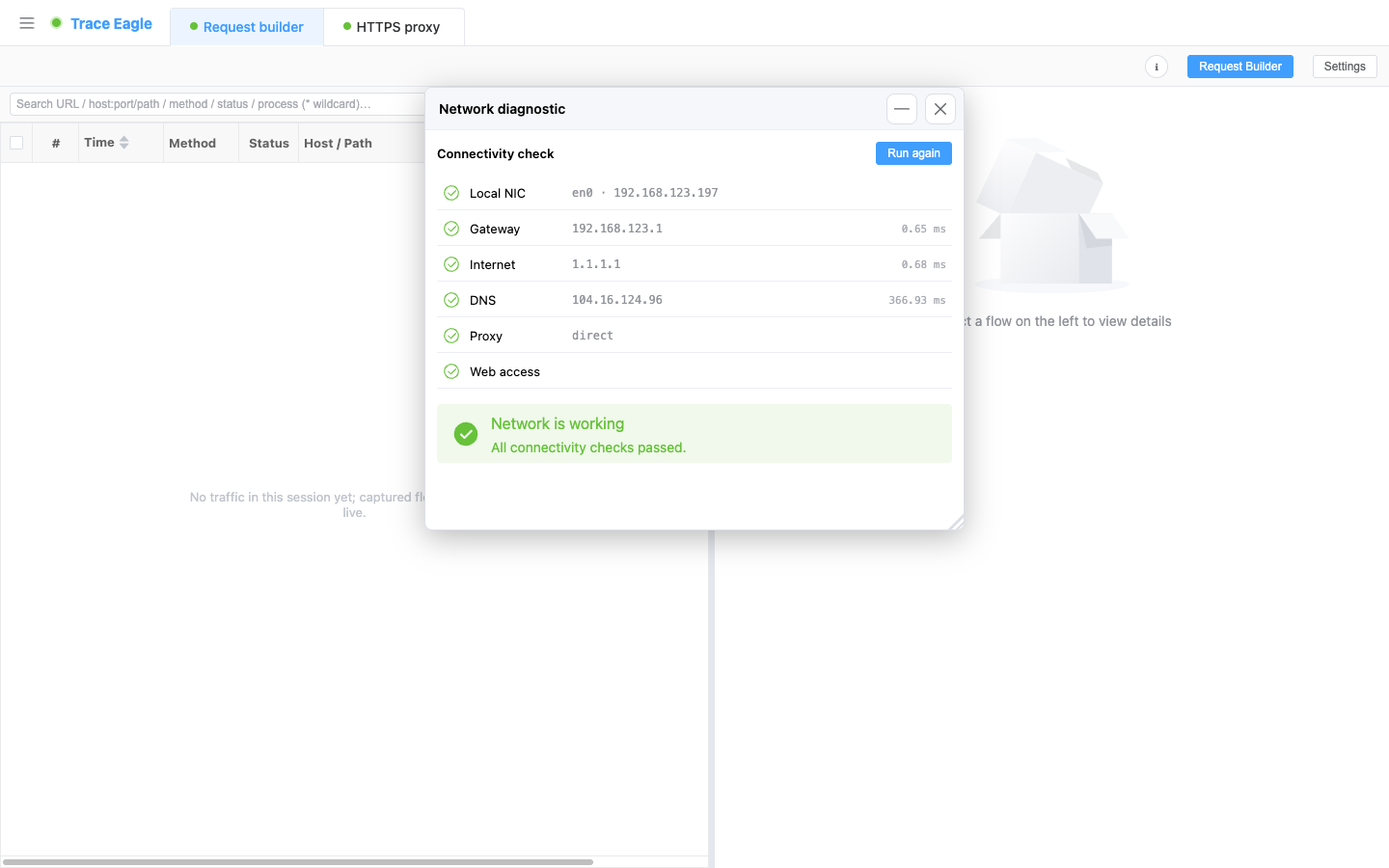
Section titled “1. One-click layered self-check: locate exactly “which layer””It starts running automatically when opened, checking all the way from the machine’s NIC up to web page access, layer by layer, with results in real time, each step carrying a status (pass / warning / fail):
- Local NIC: whether there’s a usable NIC and IP.
- Default gateway: whether the hop to the router / LAN is reachable, telling a “local / router” problem apart from a “broadband / upstream” one.
- Public connectivity: probes the public internet directly by IP without DNS (works even when ICMP is blocked).
- DNS resolution: whether domain names resolve to IPs normally, and how fast.
- Proxy settings: whether the machine’s proxy configuration is healthy (see the highlight below).
- Web page access: whether pages open normally, or get intercepted or hit an authentication portal that requires login (the kind where you’re connected to Wi-Fi but have to log in first).
When it finishes, it gives a one-line conclusion plus fix suggestion, pointing straight to the link in the chain that broke: “NIC / router / broadband / DNS / proxy / authentication portal,” so you don’t have to guess layer by layer. You can re-check at any time.
2. Highlight: automatically find and clear “leftover proxies”
Section titled “2. Highlight: automatically find and clear “leftover proxies””This is the trap that capture and VPN users fall into most easily and find hardest to self-diagnose: a tool changes the system proxy, then exits abnormally and leaves behind a leftover proxy pointing at a closed port, so every app loses network access with no obvious cause.
Network Diagnostics automatically detects and clears this kind of leftover proxy (cleaning both the machine and the system / browser ends together) and reports “restored”; proxies that are in normal use are only reported, not touched.
When the network drops the moment capture stops, this step is the fastest self-rescue. Ordinary tools usually only tell you “can’t connect” and won’t clear the root cause for you.
3. Connectivity probe: is a given host reachable, and at what latency
Section titled “3. Connectivity probe: is a given host reachable, and at what latency”To keep an eye on a link, or confirm whether a host is reachable, use the connectivity probe: it sends probes continuously and plots the latency curve in real time.
- Two probe methods: ICMP ping (traditional ping); and TCP ping, which probes a specified port (such as 443) and still measures port-level reachability when ICMP is blocked by a firewall.
- Real-time statistics: sent / received / loss rate, latest / average / minimum / maximum latency, and jitter (the fluctuation between adjacent latencies).
- Latency curve: a real-time sparkline shows the recent trend, with failure points visible at a glance, followed by a per-probe detail list below.
- Adjustable probe interval: probe at high frequency to watch jitter, or at low frequency to guard a link over the long term; you can also set a fixed number of probes.
- Convenient: ICMP probing works out of the box, and in the occasional environment where ICMP can’t be sent, the app guides you to switch to TCP ping for port-level reachability; you can open several windows at once to watch different targets in parallel, and you can also start probing straight from a capture record, with the target carried over.
4. DNS-leak test: is your DNS really going through the tunnel?
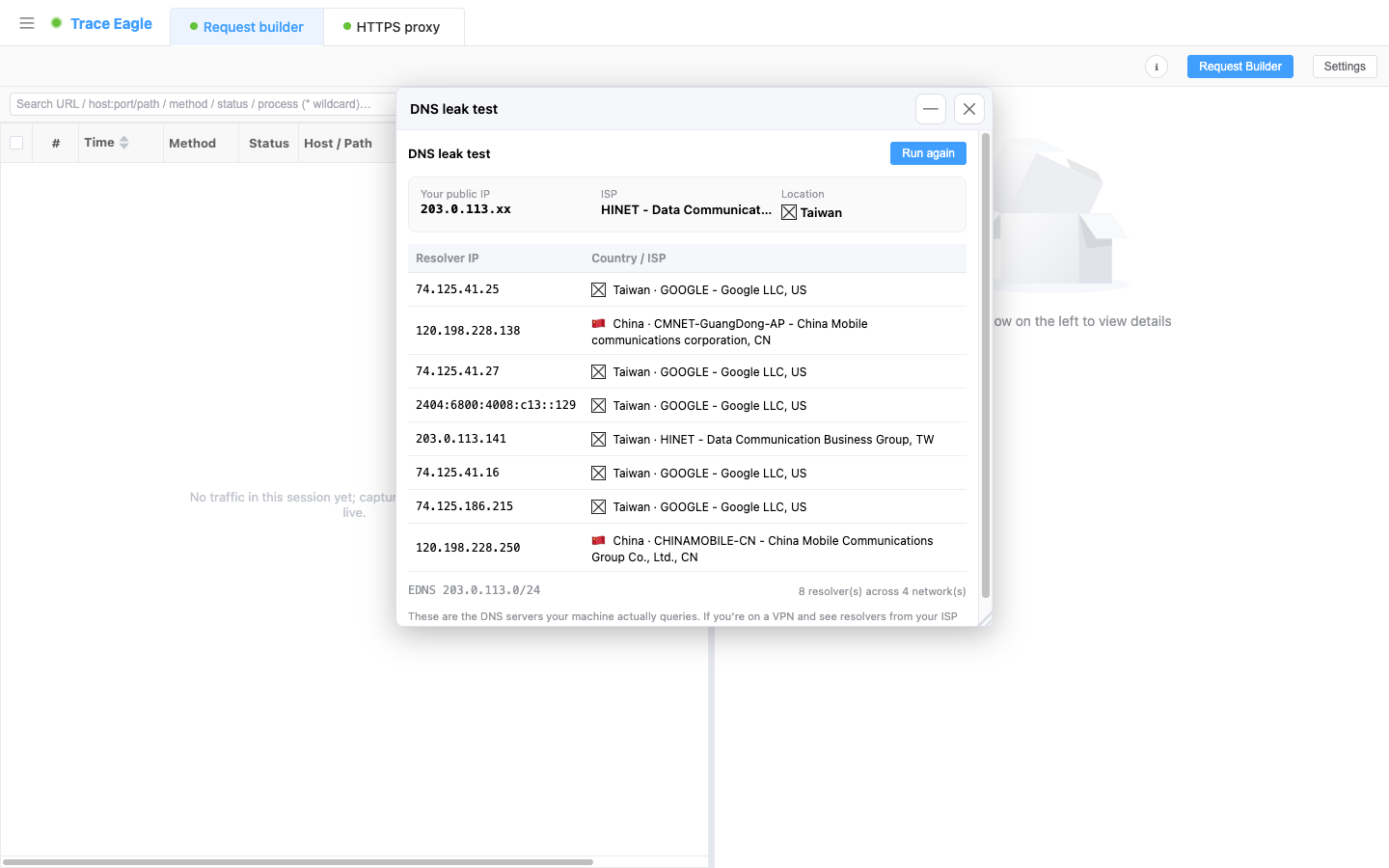
Section titled “4. DNS-leak test: is your DNS really going through the tunnel?”You’ve turned on a VPN and the traffic is going through the tunnel, but are the DNS queries following along too? See at a glance the egress DNS resolvers the machine is actually using:
- Lists the resolvers actually resolving domain names for you, with each one’s IP, country, and operator.
- How many networks these resolvers span, your egress public IP and its ownership, and, if present, the client subnet information carried in DNS queries.
- Reports the facts faithfully and makes no red / green judgment, leaving the call to you, since whether it counts as a leak depends on your expectations:
While using a VPN, if you see a local operator or a resolver from another country here, the DNS queries are leaking outside the tunnel.
Fully self-contained: an in-house test that doesn’t send you off to any online test page and doesn’t rely on any third-party leak-test website, so it works the same in offline / intranet environments.
5. When to use it
Section titled “5. When to use it”- The network suddenly dropped and you want to pinpoint in one step which link failed, instead of testing each by hand.
- Every app loses network access after capture / VPN stops, most likely a leftover proxy, cleared here in one click.
- You’re connected to Wi-Fi but can’t open pages, and suspect an authentication portal.
- Watching a link’s latency, jitter, and loss over time; use TCP ping for port-level reachability when ICMP is blocked.
- When using a VPN or proxy, verify whether DNS is going through the tunnel too, and whose DNS the machine is actually using.
Back to Proxy capture · Related: Connection table · Host details