
Capture a Single App by Launching It
Want to see the traffic from just one program, but not go through the whole hassle of “change the global proxy, install a certificate, restore everything after capture”? Give it a launch command and the tool starts the program for you, captures only that one and shows plaintext from launch, with zero interference to other software on the system. The lightest, cleanest way to capture a single program.
1. How it differs from proxy capture
Section titled “1. How it differs from proxy capture”Proxying a single program usually means changing the system proxy, installing a certificate for it, and restoring everything afterward, with the risk of affecting other software if you’re not careful. Per-process capture skips all of that:
| Proxying a single program (traditional approach) | Per-process capture | |
|---|---|---|
| System-wide proxy | Must change it, and restore it after | Untouched |
| Install a certificate | Must install one, and the program must trust it | Not needed |
| Impact on other software | Possible (a global proxy spills over) | Zero interference (affects only this one program) |
| Seeing plaintext | Only if the program trusts the certificate | Plaintext from launch (automatic decryption for common programs) |
| Cleanup after capture | Must restore the proxy / remove the certificate | Just stop it, nothing to restore |
In short: proxy capture touches “the whole machine,” per-process capture touches only “this one program.” If you want to cleanly see what a single program is sending, this is the most effortless way.
2. Where it shines
Section titled “2. Where it shines”- Captures only this one program, zero intrusion: doesn’t change the system proxy, install a certificate, or touch the NIC; only the program you launch gets captured. Other software on the system is entirely unaffected, and there’s no cleanup after capture.
- Plaintext from launch, broad coverage: browsers, Electron-style desktop apps, Node, Python, desktop Java, and command-line tools that use common crypto libraries all show plaintext the moment one command starts them up, with nothing to configure for the program and no certificate to install.
- Child processes followed automatically: child processes the program spawns internally are captured too, nothing missed.
- Ready whenever you are: to debug a script or verify an API, enter a command and start capturing, far faster than setting up a proxy and installing a certificate.
3. How to use it
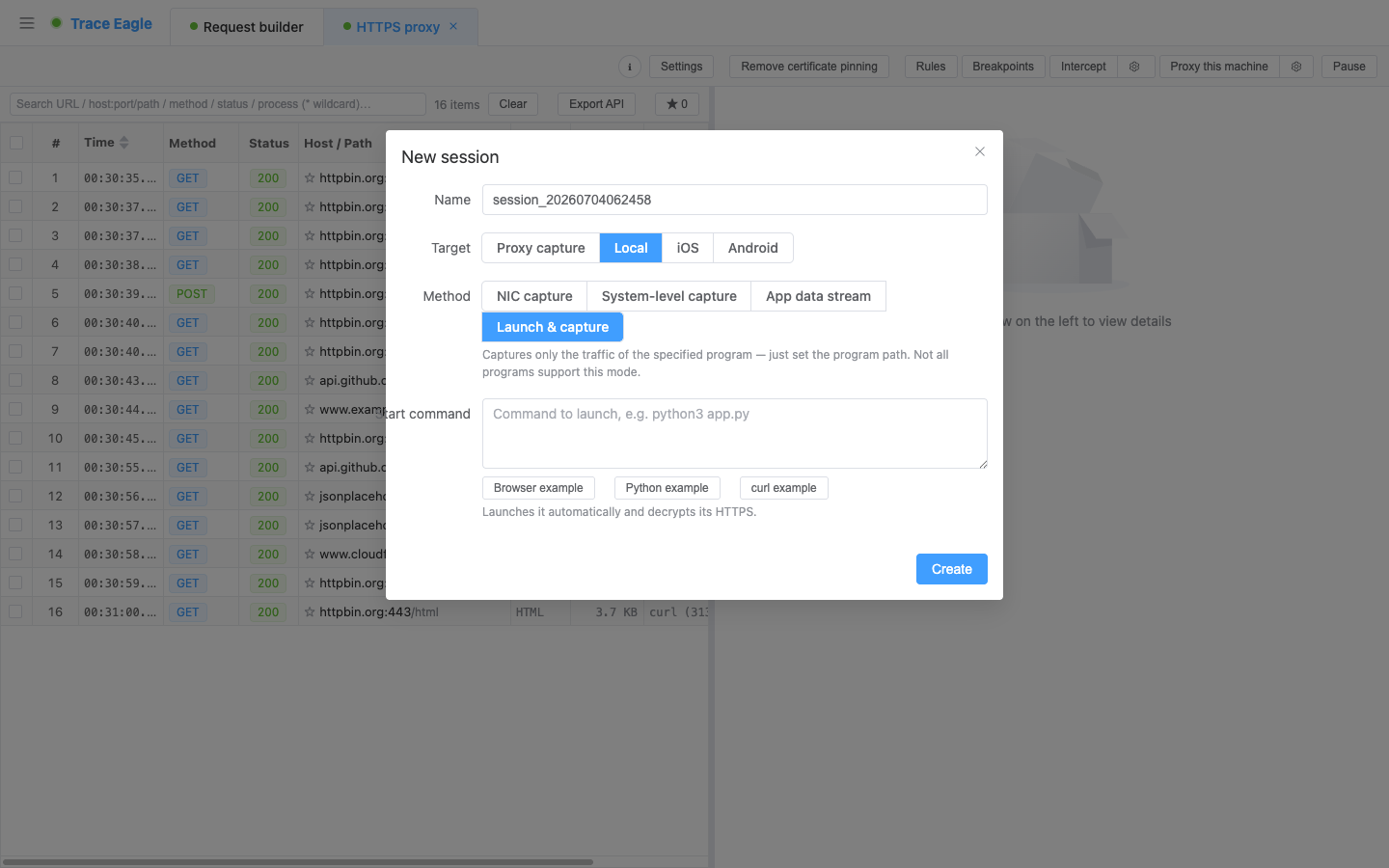
Section titled “3. How to use it”In “Launch command,” enter the command you want to run (for example python3 app.py), and the tool will start it and capture only its traffic. Three one-click examples are built in; click one to fill it in automatically, then edit as needed:
- Browser example: launches a separate, clean browser window (leaving the browser you use day to day untouched) and captures it directly; HTTP/3 (QUIC) has already been set to fall back to an ordinary connection for you, so it’s easy to capture and decryptable.
- Python example: send a request with one command and see the plaintext.
- Command-line example: an HTTPS request made from the command line is captured immediately.
If a different program you’re capturing also uses HTTP/3, turn on the session-level “Block HTTP/3” to make it fall back to an ordinary connection, which likewise makes it easy to capture and decryptable.
4. Seeing plaintext: what works, and what needs a different approach
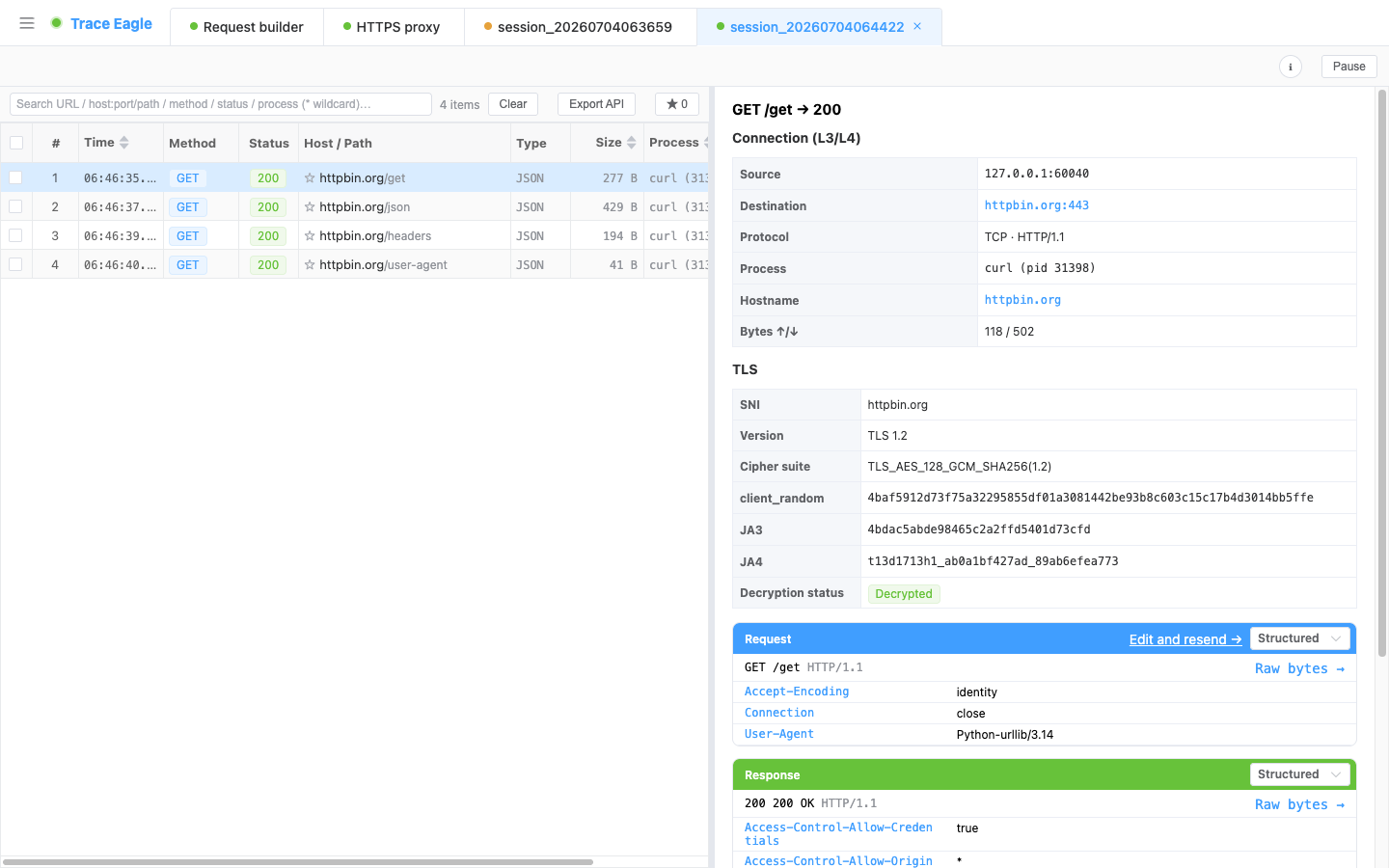
Section titled “4. Seeing plaintext: what works, and what needs a different approach”- Common programs: plaintext from launch. Browsers, Electron apps, Node, Python, desktop Java, and command-line tools that use common crypto libraries show plaintext directly after launch, with no extra steps.
- A few programs can’t be decrypted (capturable, but ciphertext only): certain programs that use special crypto libraries don’t yield plaintext with this method. The most typical is macOS’s built-in
curl(and tools based on the same system crypto library); some programs written purely in Go are the same.To see plaintext for HTTPS sent from the command line, the “Python example” is the most reliable; or switch to an OpenSSL-based
curl. - Programs that ignore proxy settings entirely: this method can’t capture their traffic.
For these “fortified” or special programs, switch to App-Layer Capture, which reads plaintext directly from inside the program and can handle certificate pinning, in-house encryption, and system crypto libraries alike.
5. After capture: understand it, decode it
Section titled “5. After capture: understand it, decode it”Captured data goes through the same processing as every other capture method, and is just as easy to understand and decode:
- Multiple ways to view: structured, prettified text, hex, and auto-detect, switchable independently for each direction. See Inspect & Decode for details.
- Automatic decompression and detection: automatically decompresses gzip / brotli / deflate / zstd (including multiple stacked layers), and auto-detects and prettifies JSON, XML, forms, protobuf / gRPC, and more.
- Custom codecs: for proprietary / in-house protocols, write a short script to teach it how to read them. See Custom Protocol Decoding for details.
6. Choosing among the four local capture methods
Section titled “6. Choosing among the four local capture methods”| Your situation | Which to use |
|---|---|
| A regular program you can start with a command (browser / script / CLI) | Per-process capture (this page, the most effortless) |
| Wanting to see all traffic on the machine, non-HTTP traffic, or everything a program does on the network | NIC Capture |
| A program that’s already running / uses certificate pinning / ignores the proxy / uses in-house encryption / uses a system crypto library | App-Layer Capture |
| Built-in system apps on macOS / stubborn apps | System-Level Capture |
7. Typical use cases
Section titled “7. Typical use cases”- Debugging a script / verifying an API: you’ve written a Python / Node script and want to see exactly what it sends and receives; enter a command and see plaintext directly.
- Watching just one program: without changing system settings or affecting other software, see only who this one program is talking to.
- Capturing a clean browser session: use the example to launch a separate browser window, free of the noise from all the plugins and tabs in your everyday browser.
Related: Proxy Capture · App-Layer Capture · Inspect & Decode